
File Explorer is the backbone of Windows — it controls your files, folders, desktop, and taskbar. When it stops responding, the whole system can feel stuck. The good news: most issues have simple, safe fixes.
Below you’ll find the most common symptoms, their causes, and step-by-step solutions.
File Explorer Suddenly Freezes
Cause: Temporary glitch in the Explorer process.
Fix: Restart File Explorer.
- Press Ctrl + Shift + Esc to open Task Manager.
- Find Windows Explorer/File Explorer → Right-click → Restart.

File Explorer Keeps Crashing or Feels Unstable
Cause: Hung background processes or memory buildup.
Fix: Reboot your PC.
- Save your work.
- Start → Power → Restart.
This clears temporary issues and applies pending updates.
File Explorer Freezes on Startup
Cause: Quick Access tries to load broken or missing locations (e.g., a disconnected USB).
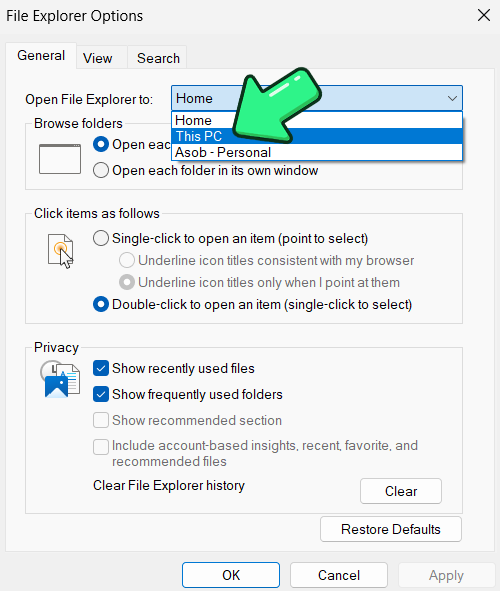
Fix: Open Explorer to “This PC.”, by following these steps:
- Press Win + R, type
control.exe folders. - In General, set Open File Explorer to: This PC.
- Click Clear under Privacy to reset history.
File Explorer Freezes in One Folder (Lots of Files)
Cause: Thumbnails or metadata overload (photos, videos, thousands of files).
Fix:
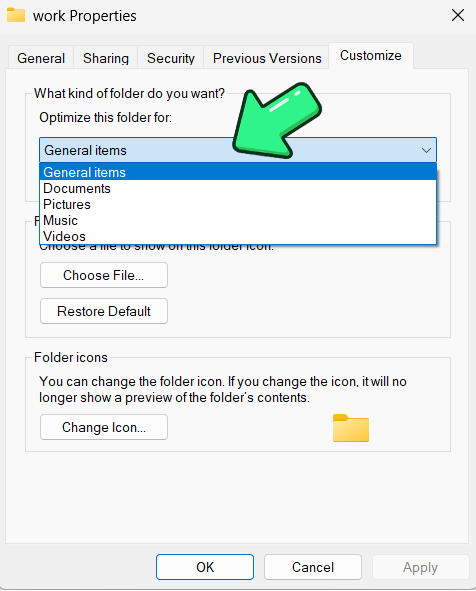
- Optimize folder: Right-click folder → Properties > Customize → Optimize for General items.
Right-Click or Menu Crashes File Explorer
Cause: A broken third-party add-on (shell extension).
Fix: Disable third-party extensions.
- Download and run ShellExView (free tool).
- You will see all File Explorer extensions. Third-party extensions have a pink background.
- Go to Options → Hide All Microsoft Extensions

- Disable all or just the suspicious non-Microsoft entries.
- Restart Explorer → test.
File Explorer Freezes After Updates or Feels Slow Overall
Cause: Outdated or buggy Windows/drivers.
Fix:
- Go to Settings → Windows Update / Update & Security → Check for updates.
- Update GPU drivers (NVIDIA/AMD/Intel tools). Go to Device Manager → Display adapters → Update driver.

- If problems began after a driver update, roll back to the previous version.
File Explorer Screen Flickers or Shows Black Boxes (Windows 11)
Cause: Graphics acceleration glitch.
Fix:
- Settings → Accessibility → Visual effects → Animation effects: Off; Transparency Effects: Off.
- Update or roll back your GPU driver.
File Explorer Problems Across the System
Symptom: Explorer fails in many areas — desktop, taskbar, and folders.
Cause: Damaged Windows system files.
Fix: Run repair tools.
- Open Command Prompt (Admin).
- Run:
sfc /scannow. - If errors remain:
DISM /Online /Cleanup-Image /RestoreHealth - Restart and test.
File Explorer Works in Safe Mode but Not Normally
Cause: Software conflict with startup programs or services.
Fix: Clean Boot.
- Press Win + R, type
msconfig. - Services tab → Hide Microsoft services → Disable all.

- In Task Manager → Startup apps → disable startup items.
- Restart → test Explorer.
Additional Checks
If previous fixes didn't work, the problem might be hidden deeper, so try these:
- Run a malware scan.
- Check drive health (Use chkdsk or Drive Health tools to verify disk status).
- Try a new user profile.
- Use System Restore or an in-place repair as last resort.
Alternative Fix: Third-Party Tools
If you need to find a file immediately, you can use SeekFast - it searches thousands of files in seconds and gives you the most relevant results. If File Explorer freezes too often, you can switch to an alternative to File Explorer, such as File Pilot - it handles files reliably and adds extra features.
SeekFast
SeekFast is a powerful search tool for Windows that looks inside your documents (Word, Excel, PDF, code files, and more) and shows results in seconds. Instead of browsing folder by folder, you can instantly jump to the exact file that contains the text you need.
File Pilot
File Pilot is a modern alternative to Explorer with tabbed windows, dual-pane navigation, and smoother performance on large folders. It makes copying, organizing, and moving files much easier, especially when Explorer slows down.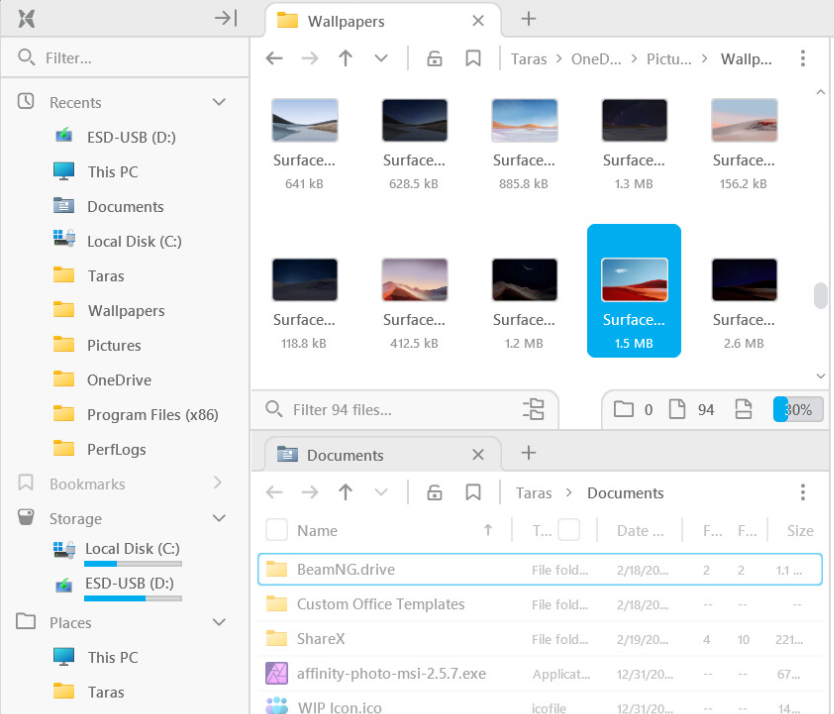
These tools give you fast and stable ways to manage and find your files while you troubleshoot.
Concluion
You can fix your File Explorer not responding with the fixes above and in the meantime, get instant solutions from 3rd party tools and access any files that you need in the rush.
Please let me know in the comments if we couldn't fix your case, and we will try to provide a solution for it.
