

Quick answer
1. Quick file search: Press Win+S to search with the Taskbar
2. Search with filters: Press Win+E to open File Explorer and use the search box
3. Search file contents: Enable File Contents in File Explorer
4. Powerful search: Use third-party search tools
I have tried hundreds of methods for searching files in Windows 11, and in this article I will share my experience.
If you are still using Windows 10, the interface is similar, but the menus may differ slightly.
The quickest way: Taskbar search
With the Windows taskbar, you can quickly search for files in your indexed folders.
To search with the taskbar, press Win+S and type your search terms. The search happens in real time while you type.
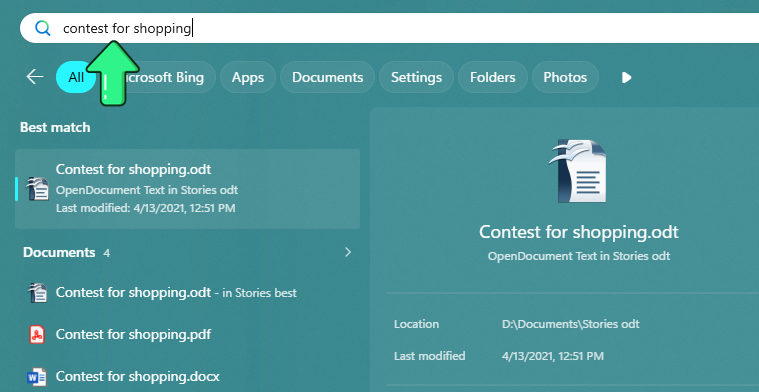
If you want to open a file from the results, click the file name.
To see more details about a file, point to it and click Preview. In the right pane, you can see details such as the file location and last modified date.
To open the containing folder, click the link "Open file location".
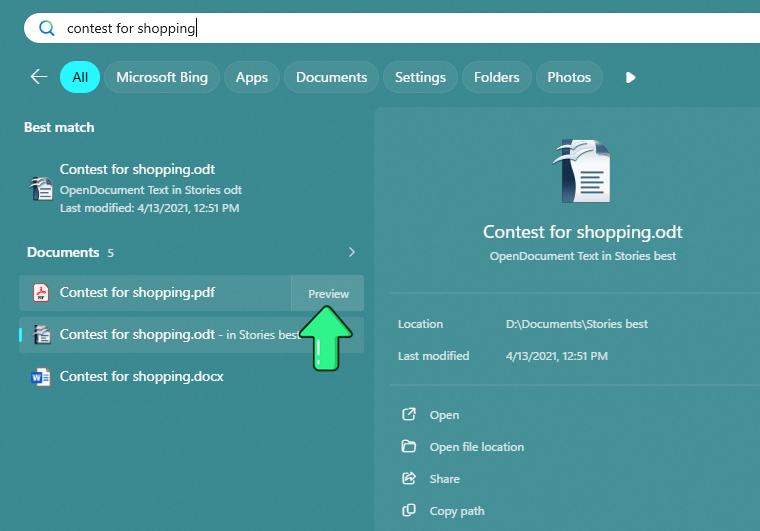
In my experience, Taskbar search works best when you remember the file name or part of it. It may also find words inside indexed documents, but for more reliable searches within files, File Explorer or a dedicated search tool is usually better.
Important limitation: Taskbar search works only in indexed folders. If you want to learn how to include locations for indexing, see the section on indexing options.
Finding specific files with File Explorer
File Explorer is the best built-in option when you want to search a specific folder, all drives on your PC, or narrow the results with filters such as date, file type, and size.
Search by file name
Open the folder you want to search. If you choose "This PC," File Explorer will search across all drives on your computer. Then click the search box and type the file name or part of it.

File Explorer works best when you know the folder where the file is likely to be, even if you do not remember its exact name. Searches in "This PC" or in large non-indexed folders can be noticeably slower.
Useful filters in File Explorer
After you click in the search box and start typing, you can narrow the results with useful filters such as subfolders, date modified, file type, and size. These filters are especially helpful when you know roughly when the file was changed or what kind of file it is, but not its exact name.
Search in subfolders – Check or uncheck this option to include or exclude subfolders.
Filter by date modified – Click the "Date modified" button and select a date. For example, if you choose today's date, only files modified today will be shown.
Filter by file type – Select the type of files you want to search, such as documents, pictures, music, or folders. To search by folder name, select "Kind" -> "Folder."
Filter by file size – Click the "Size" button to limit the results by size.

Advanced search syntax
You can also type filters directly into the File Explorer search box. This is useful when you want more precise results.
Search by file extension – To search for a specific file type, type ext:[filetype] after your keywords. For example, invoice ext:pdf finds PDF files related to invoices.
Wildcards – File Explorer supports wildcard characters when you do not remember the exact file name. The asterisk (*) matches any sequence of characters, so report* can find files such as "report2026.pdf" and "report_final.docx." The question mark (?) matches a single character, so f?le can find both "file" and "f1le."
Metadata filters – You can search using metadata stored in the file, such as the author, date, or size. Useful examples include:
- author:John - finds files where the author is John.
- date:last week - finds files modified in the last week. You can also use specific dates, for example date:>=2026-03-01.
- size:>5MB - finds files larger than 5 megabytes.
You can combine filters to narrow the results even further. For example, author:John ext:pdf date:last month finds PDF files written by John and modified in the last month.
File Explorer also supports Boolean operators such as AND, OR, and NOT for more advanced searches.
Searching text inside file contents
You can also use File Explorer to search inside file contents. This is useful when you remember a word or phrase from the document, but not the file name.
To search inside file contents, type your keywords in File Explorer, open Search options, and enable File Contents.

This works fast in indexed folders and for supported file types. If you want Windows Search to find words inside files more reliably, make sure the folder is indexed and that the file type is set to Index Properties and File Contents in indexing options.
This feature also has some limitations compared to dedicated search tools:
- Searching large folders can take a long time.
- File Explorer does not show the found text in context, so you usually need to open the file and search again inside it.
Optimizing Windows Search with indexing options
Taskbar search is fast because it works mainly with indexed folders. If an important folder is not indexed, Taskbar search may miss it or show incomplete results.
File Explorer can still search non-indexed folders, but the search is usually slower.
Windows focuses by default on common user folders such as Documents, Desktop, Pictures, and Music. If you often search other folders, it is worth adding them to the index.
In my experience, indexing is most useful for folders you search often. Indexing your entire PC is not always necessary, and on some systems broader indexing can increase background activity, so it is usually better to start with the folders that matter most.
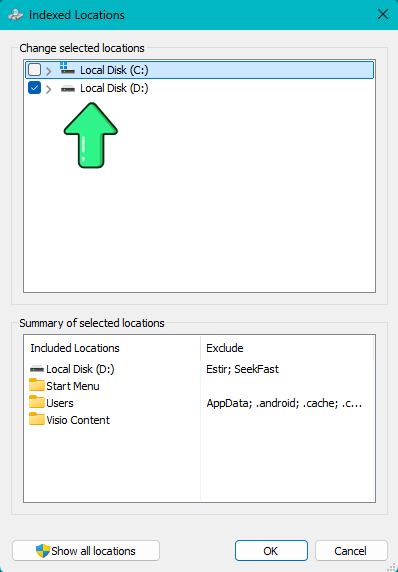
How to add folders to the index
- Open Windows Search settings.
- Click Advanced indexing options.
- Click Modify.
- Select the folders you want to index and click OK.
Index file contents
If you want Windows Search to find words inside files, not just file names and properties, open Advanced indexing options, click Advanced, go to the File Types tab, select the file extensions you want, and choose Index Properties and File Contents.
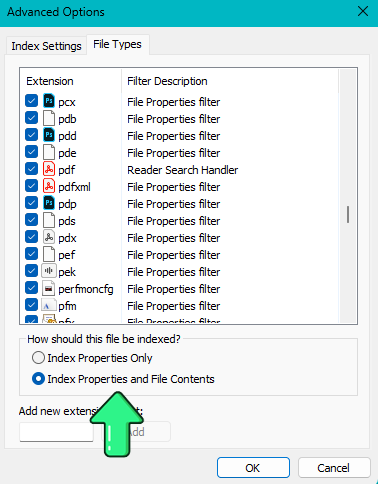
This works for supported file types and can make searches within documents in indexed folders much faster.
Third-party search tools: More powerful alternatives
SeekFast
We developed SeekFast in 2008 for searching inside large collections of documents. It is available for Windows and macOS and is designed mainly for document-heavy searches rather than for apps, settings, or system files.
Its main difference from many file search tools is the way it handles search queries. SeekFast can search for combinations of keywords even when they appear in different parts of a document, and then rank the results by relevance. This makes the search experience closer to a web search engine than to a traditional exact-match file search.
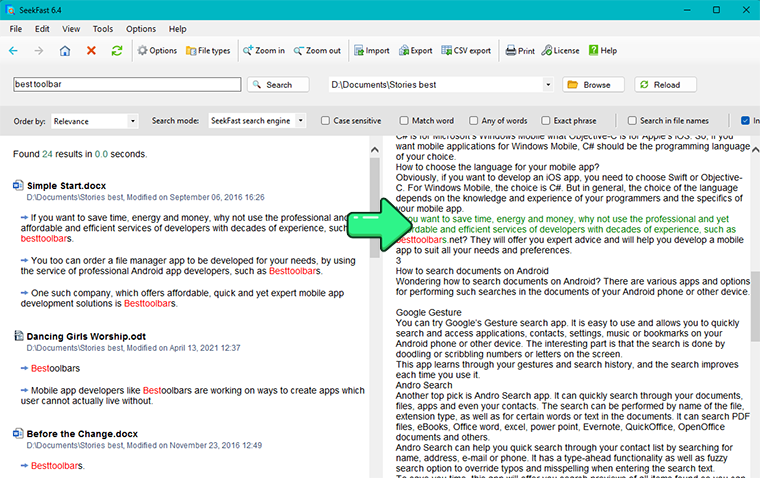
Key features include:
- Relevance-ranked results - the most relevant matches appear first.
- Multi-keyword search - find combinations of words even when they appear in different parts of the text, including across sentences.
- Windows Index mode - use the Windows search index for very fast searches, with more advanced options than File Explorer.
- Quick preview - see matching sentences and larger context before opening a file.
- Broad format support - search across more than 120 file types, including Word, PDF, Excel, eBooks, email files, and many text-based formats.
- Import and export options - load keywords from a file and save results to CSV or text.
These features make SeekFast especially useful when you need more than simple exact-match searching and want a faster way to work with large sets of documents.
Advantages
- Works on both Windows and macOS.
- Lets you evaluate results before opening files, which can save a lot of time.
- Gives you a choice between live searching and fast searching through the Windows index.
- Works well across mixed collections of documents in different formats.
- The free version is enough for small-scale testing and occasional use.
Disadvantages
- The free version is limited to searching up to 50 files at a time, and there is currently no separate trial version.
- When searching a very large volume of files, such as gigabytes of documents, the initial file processing can be slow.
- It does not support regex searches or advanced Boolean query syntax such as complex AND / OR / NOT expressions.
- The interface does not currently offer a dark theme.
DocFetcher
DocFetcher is a free and open-source desktop search tool for Windows, macOS, and Linux. It is a good option for users who want a cross-platform program for searching inside documents rather than relying only on Windows Search.
DocFetcher works by creating indexes for the folders you choose. Once the index is built, searches are fast and the program can show matching text with preview. It supports PDF, Microsoft Office, OpenDocument, HTML, plain text, and many other text-based formats.
There is also a commercial product called DocFetcher Pro. The free version is still maintained, but new features are no longer planned for it, and the main feature development continues in DocFetcher Pro.
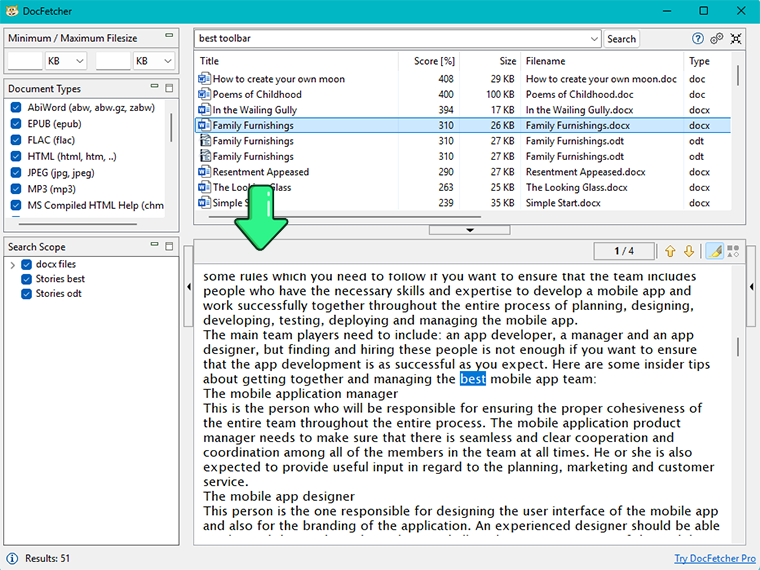
Key features include:
- Cross-platform support - works on Windows, macOS, and Linux with a similar workflow.
- Indexed document search - builds indexes for selected folders and then searches them quickly.
- Document preview - shows matching text in context before you open the file.
- Broad format support - supports PDF, Office documents, OpenDocument files, HTML, plain text, and many other text-based formats.
- Portable use - can be run from a portable ZIP package, and indexes can be stored on external media or NAS locations.
- No separate Java install needed - recent versions bundle the Java runtime, so you do not need to install it separately.
DocFetcher is aimed more at users who want a free, local, document-focused search tool than at those looking for a polished commercial search experience.
Advantages
- Completely free and open-source.
- Works on Windows, macOS, and Linux.
- Useful for users who want a portable document search tool.
- Can be relatively light on system resources once the index is created.
- A good free alternative for users who do not need the more advanced commercial features of DocFetcher Pro.
Disadvantages
- Has an older-looking interface with no dark theme.
- Offers fewer advanced filtering and search options than some commercial tools.
- Does not support some file categories such as emails.
- The free version still receives bugfixes, but new features are mainly being added to DocFetcher Pro.
File Locator Pro
File Locator Pro is a powerful document and file search tool aimed at users who need more control than Windows Search and File Explorer can offer. It is especially suitable for large archives, one-off deep searches, and advanced query types.
One of its main strengths is flexibility. Unlike tools that depend only on indexing, File Locator Pro can search directly through files without requiring a prebuilt index, but it also offers indexing when faster repeat searches are needed. It is also one of the stronger options for users who rely on advanced search syntax.
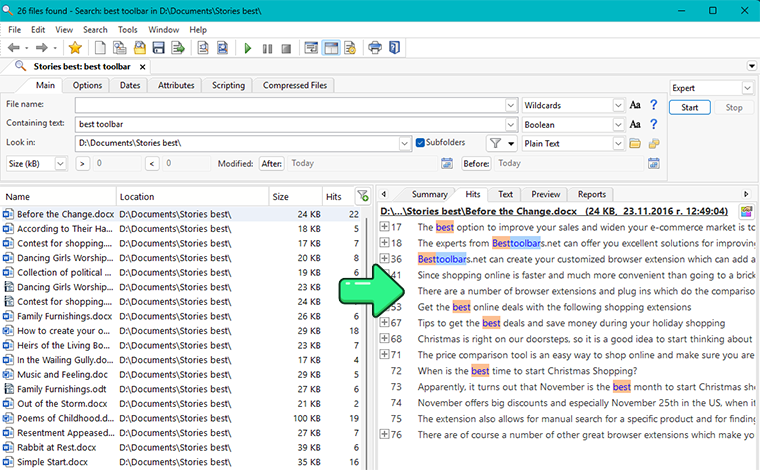
Key features include:
- Indexed and non-indexed search - search directly through files or use an index for faster repeated searches.
- Advanced query modes - supports Boolean, Regex, fuzzy, hash, and proximity searches such as
NEAR. - Detailed filtering - refine searches by text, file properties, dates, size, and other criteria.
- Large-scale search - suitable for big folders and archives where more basic tools become limiting.
- Portable mode - can be run from a USB drive using the
/portableswitch.
File Locator Pro is designed more like a professional search utility than a simple desktop search tool, so it offers a wider range of search methods and filtering options than most built-in Windows tools.
Advantages
- Well suited for power users who need Regex or advanced Boolean logic.
- Can handle one-off deep searches without requiring background indexing first.
- Offers more technical search options than Windows Search or File Explorer.
- Useful for very large archives and specialist search tasks.
- Supports live preview for every file in the search results.
Disadvantages
- The first search in a very large folder can be much slower than tools that rely on an index from the start.
- The interface and feature set may feel too technical for casual users.
- Relatively high price.
PowerGREP
PowerGREP is a highly advanced search and replace tool for Windows. It is aimed mainly at power users who need much more than ordinary file searching - especially complex regex searches, batch replacements, scripted actions, and large-scale text processing.
Its main strength is not convenience, but depth. PowerGREP can search inside many file types, including archives and office documents, and it can do much more than find text - it can also extract matches, replace text across many files, rename files, collect statistics, and automate repetitive operations.
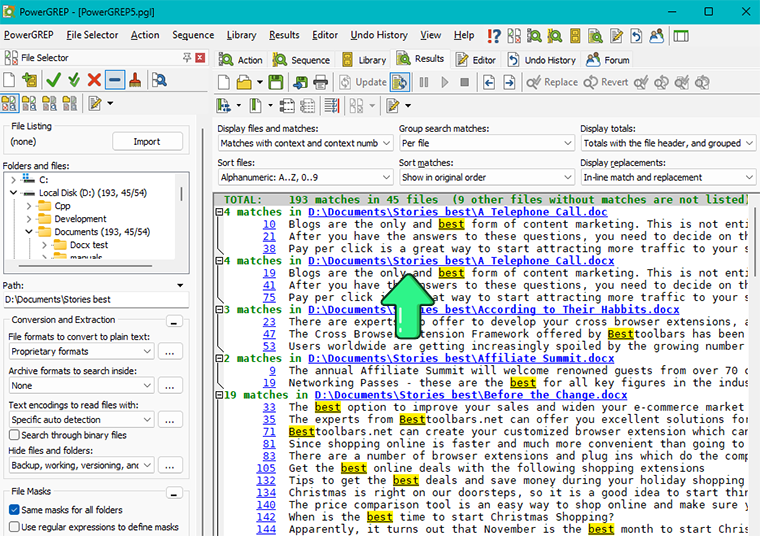
Key features include:
- Advanced regex support - supports powerful regular expressions for highly specific searches.
- Search and replace across many files - perform batch replacements, renames, and other actions across large file sets.
- Broad file coverage - can search inside archives, office files, PDFs, and many other file types.
- Detailed results - shows every match with line and column information.
- Automation options - supports logs, reusable actions, and command-line scripting.
- Full undo support - lets you roll back many bulk changes if needed.
PowerGREP is designed more like a professional text-processing environment than a simple desktop search tool, so it offers far more control than Windows Search, File Explorer, or most document search utilities.
Advantages
- Excellent for advanced regex-based searches.
- Can search, replace, rename, and extract data across very large collections of files.
- Useful for technical, analytical, and repetitive text-processing tasks.
- Provides more automation and scripting options than typical desktop search tools.
Disadvantages
- Has a steep learning curve and an interface that can feel overwhelming at first.
- Because it does not rely on background indexing, repeated searches in large folders can be slow.
- More expensive than most desktop search tools.
- Too advanced for users who only need quick everyday document searches.
Advanced command-line search
If you are comfortable with the command line, PowerShell is the best built-in option for advanced searches in Windows. It is most useful for power users, automation, and searches in text-based files.
To search for file names containing a keyword in a folder and its subfolders, you can use:
Get-ChildItem "D:\Path to your search folder" -Recurse -Include *.txt,*.html -File | Where-Object {$_.Name -like "*keyword*"}
To search inside file contents, you can use:
Get-ChildItem "D:\Path to your search folder" -Recurse -Include *.txt,*.html -File | Select-String -Pattern "keyword"
In my experience, PowerShell is most useful when you want to automate searches or work with text-based files. For Word, Excel, PDF, and other complex document types, File Explorer or a dedicated search tool is usually more convenient.
Ask Copilot and Copilot+ semantic search
Windows 11 is gradually adding new search features, but for now they still reach only a small percentage of users.
Ask Copilot on the taskbar
Ask Copilot on the taskbar is a new experimental feature in Windows 11 that is expected to be released in the standard version of Windows perhaps by the end of 2026. Copilot appears directly in place of the standard search box on the taskbar. Instead of the classic Windows Search, the user sees a field like "Ask Copilot anything". The results update immediately as you type, and the idea is for Copilot to become a more natural part of everyday computer use.
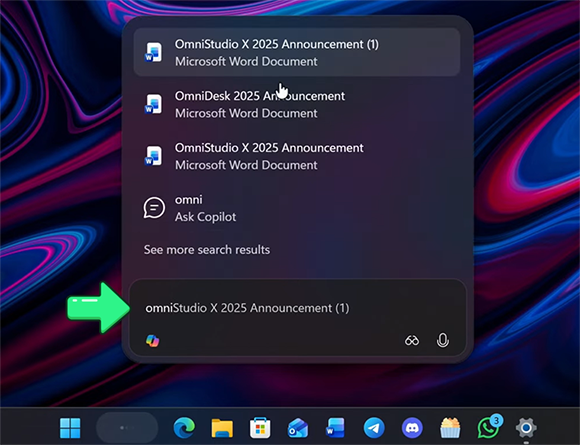
According to Windows Latest's test, Ask Copilot can find files, apps, and settings through Windows Search indexing, but this is more of a new interface layered over the existing Windows search rather than a fully developed AI tool that reliably analyzes the contents of local documents. There is, however, one new tool that really does offer AI-driven semantic search - Copilot+.
Semantic search on Copilot+ PCs
Windows 11 now includes true semantic indexing and natural-language search for files, photos, and settings, called Copilot+. Unfortunately, the feature is available only on a specific type of next-generation computers that have a specialized auxiliary processor for AI calculations, called an NPU. The feature also requires 16+ GB of RAM and at least 256 GB of free SSD storage.
At the moment, the types of computer processors that support Copilot+ are:
- Qualcomm Snapdragon X - used in some of the new Windows laptops
- Intel Core Ultra - some of Intel's newest models
- AMD Ryzen AI - some of AMD's newest models
With semantic search, Windows does not look only for exact words, but tries to understand the meaning of the query and match it to the content of files and images. That is why on a Copilot+ PC you can type something like "Q3 budget presentation" and the system can find suitable documents even when those exact words do not appear in them.
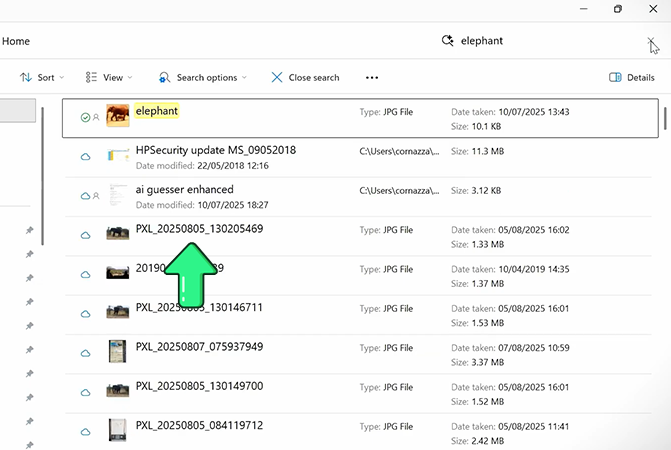
With photos, the idea is the same: you describe in normal words what is in the image - for example, "elephant" - and Copilot+ searches for semantic similarity in the indexed local photos, instead of relying only on the filename or metadata.
What if Windows Search is too slow or not working
If Windows Search feels slow, the cause is usually one of a few common issues:
- The search index is incomplete or still rebuilding - this often happens after major Windows updates, after adding many files, or after changing indexing settings.
- Important folders are not indexed - Windows Search works best in indexed locations. If the folder you search in is outside the index, results can be much slower.
- Content search is being used in large or non-indexed locations - searching inside file contents is more demanding than searching by file name, so it can take noticeably longer.
To improve Windows Search performance, these steps usually help most:
- Make sure the folders you search most are included in the index.
- Remove folders from the index that you rarely or never search.
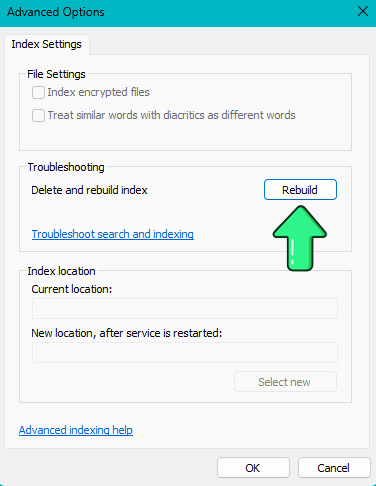
- Go to Indexing Options → Advanced → Rebuild to rebuild the index if search has become slow, incomplete, or inconsistent.
If you regularly search large archives, many file types, or a lot of document content, Windows Search may simply not be the fastest tool for that kind of workload.
If Windows Search is not working at all, we have a separate article focused specifically on that problem, with concrete fixes for different symptoms and causes.
Conclusion
I hope this short guide to searching for files in Windows was helpful to you.
If you're running macOS, make sure to check out our article about searching on Mac.
Now I would like to hear from you – which task do you have to do more often? Which of these programs is most convenient for you? Let me know by leaving a comment below!
Frequently Asked Questions
1. What is the fastest way to search for a file in Windows 11?
For quick everyday searches, the fastest built-in option is usually Taskbar search. It works best when you remember part of the file name and when the folder is included in the Windows index.
2. What is the best built-in tool for searching in a specific folder?
File Explorer is usually the better choice when you want to search inside a particular folder, search across all drives, or narrow the results with filters such as date modified, file type, and size.
3. Can Windows 11 search inside file contents, not just file names?
Yes. File Explorer can search inside file contents if you enable File Contents. For more results, the folder should be indexed and the file type should be set to Index Properties and File Contents in indexing options.
4. Why is Windows Search not finding words inside my documents?
This usually happens because the folder is not indexed, the file type is not configured for content indexing, or you search scanned documents that are not processed via OCR.
5. Why is File Explorer search sometimes so slow?
Searches are often slower in large folders, in non-indexed locations, or when you search inside file contents instead of only by file name. Performance can also drop if the index is incomplete or still rebuilding. For practical fixes, see What if Windows Search is too slow or not working.
6. Can I make Taskbar search look through every folder on my PC?
Yes, but you have to include them in Windows indexing settings.
7. Which built-in Windows tool should I use: Taskbar search or File Explorer?
Use Taskbar search for quick file-name searches and recently used files. Use File Explorer when you want to search a specific folder, use filters, or search more precisely across folders and drives.
8. What if Windows Search is not working at all?
If search is broken rather than just slow, it is better to follow a dedicated troubleshooting guide, because the cause can vary - for example, indexing issues, search service problems, or broken search components.
9. Is Windows Search good enough for searching inside lots of documents?
For light everyday use, often yes. But if you regularly search across many documents, many file types, or large archives, dedicated third-party tools are usually more practical and faster.
10. Which third-party tool is best for ordinary document searching?
That depends on what you need. SeekFast is focused on document-heavy searches with multi-keyword queries and relevance-ranked results, DocFetcher is a good free and open-source option, File Locator Pro is better for technical and power-user searches, and PowerGREP is aimed more at advanced regex, bulk replace, and automation tasks.
11. What makes SeekFast different from ordinary file search tools?
Its main difference is that it can search for combinations of keywords even when they appear in different parts of a document and then rank the results by relevance. That makes it more useful for document-oriented searches where you remember ideas or terms, but not the exact file name or phrase.
12. Is there a good free alternative to Windows Search for document contents?
Yes. DocFetcher is one of the best-known free and open-source options for searching inside documents on Windows, and it also works on macOS and Linux.
13. Which tool is best for regex or very advanced searches?
For that kind of work, File Locator Pro and especially PowerGREP are much more suitable than the built-in Windows tools. They are designed for technical users who need advanced query syntax, detailed filtering, or bulk text operations.
14. Does Windows 11 have AI or semantic search for files?
Windows 11 is gradually adding AI-based search features, but they are still limited. Ask Copilot on the taskbar is different from the newer semantic search available on Copilot+ PCs, so it is important not to treat them as the same feature.

Awesome! It’s exactly what I’ve been looking for. I’m a teacher, and I spend the majority of my time checking to see if my students are copying each other’s answers. The majority of the take-home tasks or exams are designed for students to learn while working on the activity, and I consider them to be learning if they discuss or work together on the questions with their peers after class. However, there are always a few pupils who seek to cut corners by copying and pasting answers. I used Windows Explorer’s advanced search feature to look for duplication of text chunks. It requires patience since it takes time (perhaps because of the slow hard disk). I’m thinking about trying out some of the suggested apps to see which ones work best on my outdated computer. Cheers
Great software for studying. I use SeekFast when studying, researching, to remind myself of certain concepts/topics. Sometimes they can be spread out across multiple files, so SeekFast is a great tool to know where each concept is and refresh my memory on them.
EVERYTHING also failed ( as did Windows 11 File Explorer) in finding a file name containing a keyword.
Stop wasting my time!
Hi Al,
Have you tried SeekFast (mentioned in this article)? The tool can search both the names and contents of Windows 11 files.
Brilliant, thank you for your sharing!
Tried seekfast. Unfortuantely failed in search text within the image file
Hi Ben,
SeekFast is designed to search all standard document types but not image files. To search images, you must first use OCR software to extract the text from each image and save it to some kind of text document. You will then be able to search these documents via SeekFast without any problems.
You can read more about OCR software at https://seekfast.org/blog/search-text-in-documents/how-to-search-in-a-pdf-file-for-words-or-phrases/#section6
Yo, thank you so much. Helpful article. Do you guys know how to make findstr search a string with spaces, though? When i enter a phrase it just finds matches for the first word and ignores the rest. Any ideas?
Hi nutzboi, to make findstr search a phrase with spaces, use /C: with double quotes, for example: findstr /C:”string with spaces” file.txt.
If you want more flexible command-line searching, I’d also suggest checking the Advanced command-line search section, where PowerShell examples are covered.
DOS suggests that FINDSTR is a built-in command. But it does not follow one particular convention.
(1) I have a space in my “Google Drive” folder name, which is not supposed to be a problem because of the well-documented resolution “… paths with spaces require quotation marks….” around the entire path.
So I put the entire path inside double quotes like so:
FINDSTR “find this” “C:\Users\Dov\Google Drive\*.bas”
But DOS tells me this:
<>
Where did my quotation marks go? I assume FINDSTR did it. Why?
(2) But EVEN WORSE is that, before I remembered to put the entire path inside double quotes, DOS threw “Out of Memory” errors.
Yes, that was my error/fault (now corrected) but WHY did those attempts NOT give the <> error?
What was FINDSTR DOING to run me out of memory? (I have 32 GB on a 64-bit system.) It certainly wasn’t trying to open any file since the “cannot open” error wasn’t thrown.
I Googled “Findstr out of memory” and found an interesting recent thread at https://www.dostips.com/forum/viewtopic.php?t=10543, dated Oct 2022. One suggestion was that FINDSTR moves on to the next file without closing the previous handle. This is reasonable. The “*” wildcard character pretty much has to be is used. If the search node has enough folders and files beneath it, out of memory will happen.
Toward the end of the thread an opinion held that “this should be reported to Microsoft (with all the steps required” to cause the error). I wholeheartedly agree. (All I had to do to get “out of memory” was to have a space in a path name that was not inside quotes. Just doing this could be revealing.)
My very unsatisfactory temporary workaround was to rename my “Google Drive” folder to “Google_Drive” and leave the quotes off the path name in the FINDSTR command. FINDSTR then produced correct results.
But that folder has to be renamed back to “Google Drive” for everything (like opening a file!) to work.
Hi Dave, the main issue here is that findstr is quite old and can be confusing when both the search text and the file path need quotes. In practice, the search string should usually be passed with /C:, for example: findstr /C:”find this” “C:\Users\Dov\Google Drive\*.bas”.
I can’t say for sure what caused the “Out of Memory” behavior in your earlier attempts, but findstr is known to be quirky in more complex cases. That’s exactly why, for advanced command-line searching, I generally recommend PowerShell instead.
findstr /C:”Your string here”