

Quick answer
Search text files: Use grep or ripgrep for plain text, code, logs, and config files.
Search inside documents: Use a desktop app for PDF, Word, Excel, LibreOffice, and more.
Looking for a file by name instead: Use find or locate.
I tested a wide range of Linux file-search commands and applications—far more than the ones covered here—and selected the most practical and effective methods. I tested the examples on Ubuntu with the same collection of TXT, PDF, ODT, DOCX, and other files used throughout the article.
Use the table below to choose the right method first, then follow the relevant section.
Which Linux search method should you use?
The best method depends mostly on the type of files you need to search.
| Task | Best option |
| Search text files with a standard Linux command | grep |
| Search text files in large folders quickly | ripgrep |
| Find a file by name, not by its contents | find or locate |
| Search inside PDF, Word, LibreOffice, Excel, and other documents | SeekFast |
| Use a free open-source indexed document search tool | Recoll or DocFetcher |
The grep and ripgrep tools search inside text files, while find and locate search for filenames and paths. These tools are excellent for technical files, but they do not reliably search inside complex document formats. That is why the right answer for a folder full of documents is different from the right answer for a folder full of logs or code.
Search text in files with the grep command
The grep command is the standard Linux tool for finding text in files. It is best for plain text, source code, logs, CSV files, Markdown files, and configuration files.
To search for a word in the .txt files in the current folder, use:
grep "budget" *.txt
To search a folder and all its subfolders, use recursive search:
grep -R "budget" ~/Documents/stories
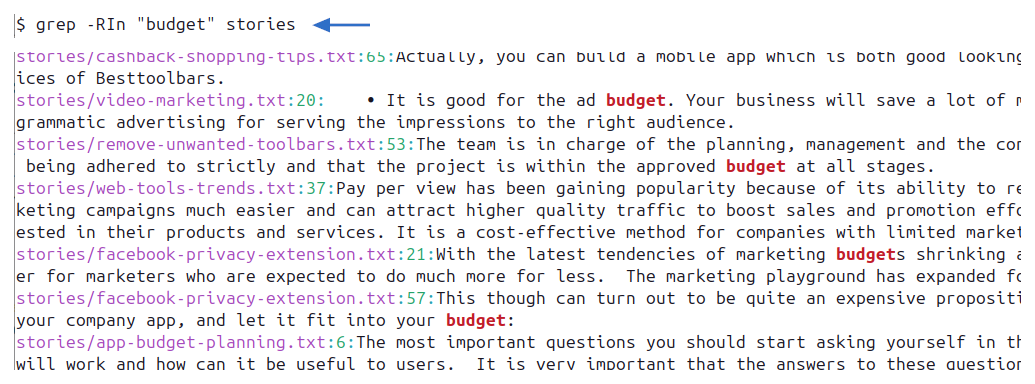
In practice, I usually add line numbers and file names, because they make the results easier to use:
grep -RIn "budget" ~/Documents/stories
Here is what the options mean:
- -R searches folders recursively.
- -I skips binary files.
- -n shows line numbers.
Case-insensitive search
To ignore uppercase and lowercase differences, add -i:
grep -RIn -i "report" ~/Documents/stories
This can find "report", "Report", and "REPORT".
Search whole words only
To match a whole word, add -w:
grep -RIn -w "policy" ~/Documents/stories
This avoids matches inside longer words such as "policyholder".
Search only specific file types
To search only files with a certain extension, use --include:
grep -RIn --include="*.txt" "budget" ~/Documents/stories
For several extensions, repeat the option:
grep -RIn --include="*.txt" --include="*.md" "budget" ~/Documents/stories
This is useful for folders that contain many file types and you only want to search text-based files.
Exclude folders from the search
Large folders often contain directories you do not want to search, such as archive, drafts, or backups. You can exclude them like this:
grep -RIn --exclude-dir="archive" --exclude-dir="drafts" "risk" ~/Documents/stories
This keeps the results cleaner and can make the search much faster.
Search for an exact phrase or multiple strings
For an exact phrase, put the phrase in quotes:
grep -RIn "sales report" ~/Documents/stories
To search for any of several strings, add one -e option for each string:
grep -RIn -e "sales" -e "budget" -e "payment" ~/Documents/stories
You can also use extended regular expressions with -E:
grep -RInE "customer|product|service" ~/Documents/stories
Both commands match a line containing at least one of the strings. If you need files that contain both "sales" and "payment", even on different lines, filter the filenames in two steps:
grep -RIlZ "sales" ~/Documents/stories | xargs -0 -r grep -Il "payment"

These are the most commonly used cases of the grep command. For the complete reference, see the GNU grep manual.
When grep is not enough
The grep command is powerful, but it is still a plain-text search tool. It usually works well for files that are stored as readable text. It is not a good general solution for Word documents, Excel spreadsheets, LibreOffice files, PDFs, eBooks, or other document formats.
If you try to use grep on a folder full of mixed documents, you will often miss important matches or get unreadable output. For those cases, skip ahead to document search tools.
Use ripgrep for faster command-line search
The ripgrep tool, usually run as rg, is a modern command-line search tool. The official ripgrep guide explains that it searches directories recursively by default and applies automatic filtering. For recursive searches in large code and text folders, it is often faster than standard grep.
To search the current folder and its subfolders, use:
rg "budget"
To search a specific folder:
rg "budget" ~/Documents/stories
To search only certain file types:
rg "budget" -g "*.txt" ~/Documents/stories
The ripgrep tool also respects .gitignore by default, which is helpful in source-code projects because it skips many generated or irrelevant files automatically.
Use ripgrep when you search code, logs, Markdown, configuration files, or other plain text. For PDF, Word, LibreOffice, Excel, and other documents, use a document search tool instead.

Which should you use: grep or ripgrep?
Both tools search plain-text contents, but they suit slightly different workflows:
- Use grep for a standard command that is already available on almost every Linux system.
- Use ripgrep for fast recursive searches in code repositories and large text folders.
- The ripgrep tool searches subfolders by default and respects
.gitignore, while the grep command requires recursive options and searches more literally unless you exclude paths. - Use a document search tool instead of either command for PDF, Word, Excel, LibreOffice, and other complex document formats.
How to install ripgrep on Ubuntu, Mint, Fedora, Debian, and other Linux distributions
The ripgrep search commands are the same across Linux distributions. Only the installation command changes with the package manager. The commands below follow the official ripgrep installation instructions.
| Distribution | Install ripgrep |
| Ubuntu, Linux Mint, Debian | sudo apt install ripgrep |
| Fedora | sudo dnf install ripgrep |
| openSUSE | sudo zypper install ripgrep |
| Arch Linux | sudo pacman -S ripgrep |
Find files and directories by name in Linux
If you know all or part of a file's name, use the find command. The GNU Findutils manual documents its filename, time, size, and other filters. The command does not search the text stored inside files; use grep or ripgrep for that.
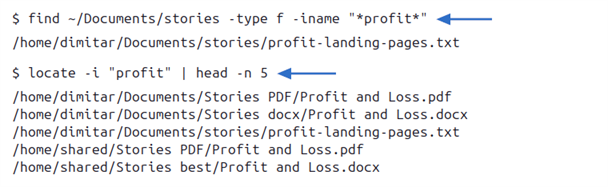
To find files whose names contain a particular word in the stories folder and its subfolders, use:
find ~/Documents/stories -type f -iname "*profit*"
Use -iname for a case-insensitive partial match:
find ~/Documents/stories -type f -iname "*shopping*"
The asterisks match any characters before or after "shopping". To find a directory instead of a file, change -type f to -type d:
find ~/Documents/stories -type d -iname "*archive*"
You can also filter files by extension, modification date, or size:
find ~/Documents/stories -type f -iname "*.pdf"
find ~/Documents/stories -type f -mtime -7
find ~/Documents/stories -type f -size +100M
These commands find PDF files, files modified within roughly the last seven days, and files larger than 100 MB, respectively.
Find files faster with locate
The locate command searches a filename database instead of scanning the filesystem each time, so filename lookups are usually much faster than with find. The plocate manual explains how this indexed lookup works:
locate -i "profit"
Because locate uses an index, very recent files may not appear until the database is updated. On systems where you have permission to refresh it, use:
sudo updatedb
Use find when you need current results or detailed filters. Use locate when you want the fastest way to look up an existing filename across indexed locations.

Best document search tools for Linux
The grep and ripgrep tools are designed for plain text. To search PDF, Word, Excel, LibreOffice, eBooks, and other formats, use one of the document-search applications below; image-only scanned PDFs require OCR first.
SeekFast is a strong fit when you want to search folders containing different document types, preview matching sentences, and see relevance-ranked results without working in the terminal. It is especially convenient when you need to search a new or frequently changing folder.
Recoll and DocFetcher are good choices when you prefer free, open-source software and are comfortable creating an index in advance. Indexing takes some preparation, but it can make repeated searches across an established document collection more practical.
The ChatGPT desktop app takes a different approach. It can work with folders you choose, answer natural-language questions, compare files, and summarize findings. It is best used as a complement when you need to understand the information, rather than as the only tool for exhaustive exact-match searches.
SeekFast
SeekFast is a document search tool for Windows, macOS, and Linux. It is designed for searching inside large collections of documents rather than searching only plain text files from the terminal.
The main advantage is convenience. You choose a folder, type your search words, and see the matching sentences before opening each file. This is useful when you do not know the exact file name and need to search inside many documents.
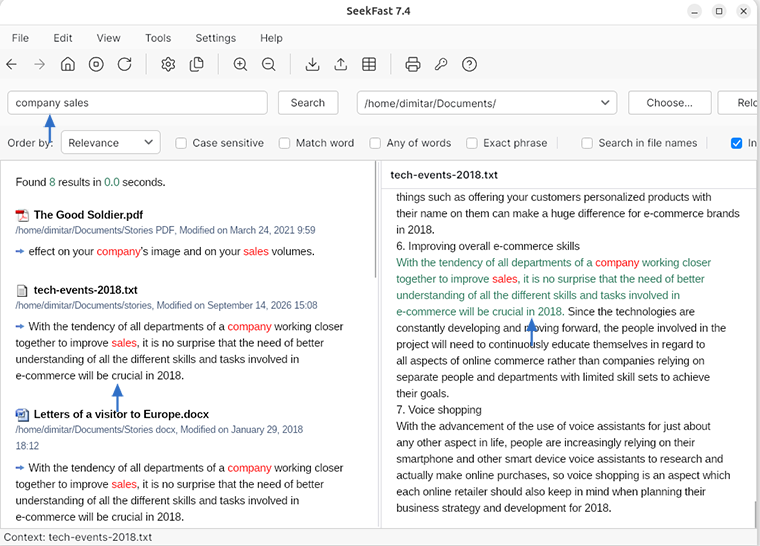
SeekFast is especially useful when your folder contains mixed document types, because it can search inside many formats and rank the results by relevance. This makes it closer to a web search experience than a traditional exact-match file search.
Key features include:
- Document search - search across more than 120 supported file formats, including PDF, Word, LibreOffice, Excel, text files, and eBooks.
- Matching sentence previews - see the relevant text before opening the file.
- Relevance-ranked results - files with better matches appear higher in the results.
- Multiple keyword search - find documents even when the words are not next to each other.
- Graphical workflow - no need to build terminal commands for common document-search tasks.
Advantages
- Much more convenient than grep for folders with real documents.
- Works well when you remember words from the document but not the file name.
- Shows context, so you can evaluate results before opening files.
- Useful for mixed folders with PDF, Office, LibreOffice, text, and other formats.
Disadvantages
- The SeekFast free version is limited to searching up to 50 files at a time.
- It is not meant to replace grep or ripgrep for source-code searches.
- It does not support advanced regex workflows like specialized command-line tools.
If your main task is searching inside many documents rather than searching code or log files, download SeekFast and try it with one of your document folders.
Recoll
Recoll is a free, open-source desktop search tool for Linux and other Unix-like systems. It uses an index, which means it first scans the folders you choose and then lets you search them quickly.
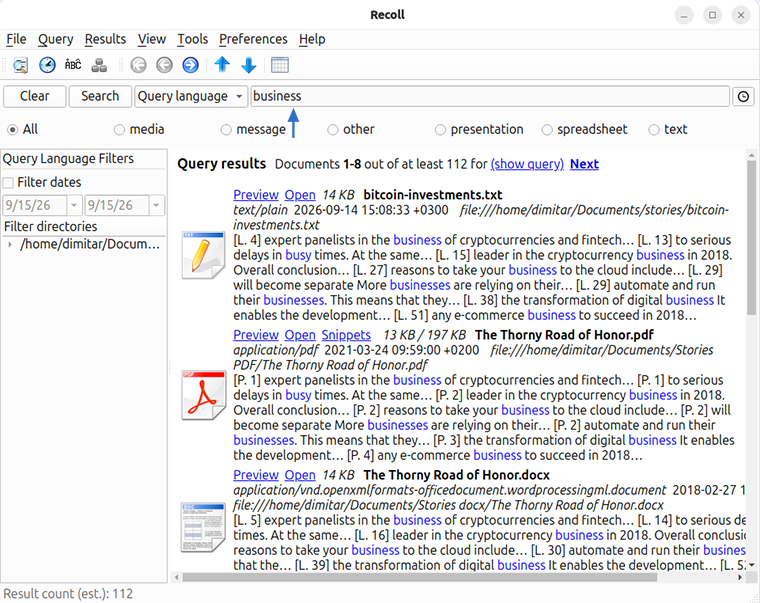
Support for some document formats depends on helper applications installed on your system. It is a good choice if you want an open-source indexed desktop search tool and do not mind spending some time configuring it.
Advantages
- Free and open-source.
- Works well as an indexed Linux desktop search tool.
- Can search many document formats with the right helper programs.
Disadvantages
- Initial indexing and configuration can take time.
- The workflow may feel technical for casual users.
- Document format support can depend on installed system packages.
DocFetcher
DocFetcher is a free, open-source desktop search application for Linux, Windows, and macOS. DocFetcher Pro is a separate paid version with additional features. Like Recoll, it works by creating indexes for the folders you choose.
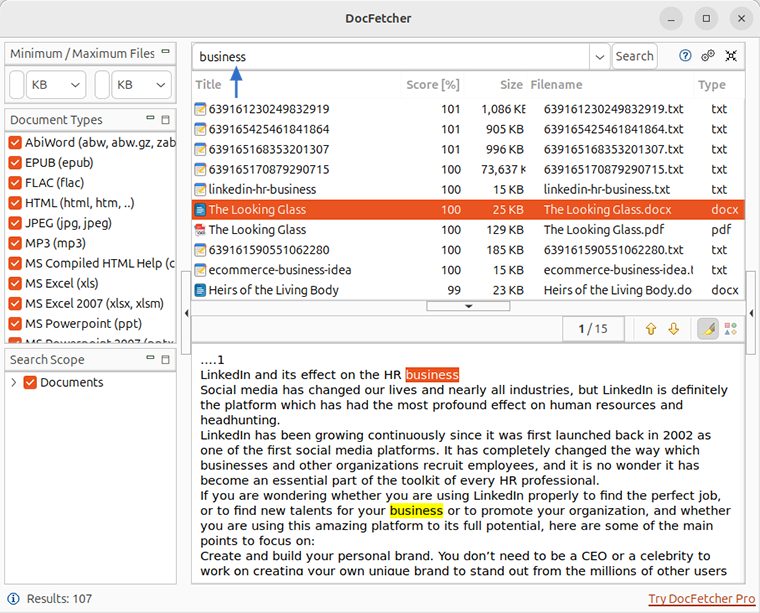
DocFetcher supports common document formats such as PDF, Microsoft Office, OpenDocument, HTML, and plain text. It can be useful when you want a free cross-platform tool and are comfortable building indexes before searching.
Advantages
- The standard DocFetcher edition is free and open-source.
- Available for Linux, Windows, and macOS.
- Can show text previews from indexed documents.
Disadvantages
- Requires creating an index before you can search a folder's contents.
- The interface feels older than many modern search tools.
- Less convenient if you often search one-off folders without preparing an index.
ChatGPT desktop app
The ChatGPT desktop app is available in preview for supported Linux distributions. It is not a traditional file search program. Instead, it is an AI workspace that can work with the files in folders you choose.
To use it with local files, open a local folder in ChatGPT Work or Codex and grant access to the files you want to use. You can then ask questions in natural language, such as:
- "Find the documents that discuss business risks."
- "Compare the sales reports and show the most important differences."
- "Find the information related to this project and summarize it."
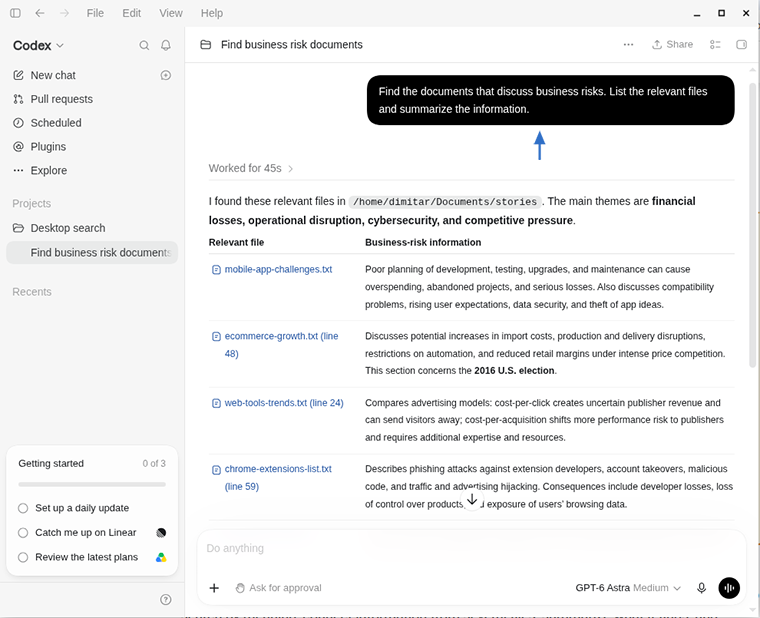
This approach is most useful when you do not remember the exact wording. ChatGPT can help search by meaning, connect information from several files, summarize what it finds, and explain the results. Codex can also search and analyze source-code projects.
Advantages
- Accepts natural-language questions instead of only keywords or regular expressions.
- Can summarize, compare, and interpret information from multiple files.
- Useful when the next step is understanding the results, not just locating a phrase.
Disadvantages
- It is not designed to guarantee every exact occurrence, so use grep or ripgrep when completeness matters.
- It does not provide the same dedicated indexed-search workflow as SeekFast, Recoll, or DocFetcher.
- The Linux version is still in preview and officially supports only selected distributions.
- It requires a ChatGPT account and uses online services rather than working entirely offline. Review how OpenAI uses ChatGPT and Codex data and your privacy requirements before using it with sensitive documents.
Use ChatGPT as a complement to conventional search tools: grep and ripgrep are better for exact text searches, document search applications are better for browsing collections with predictable results, and ChatGPT is useful when you want to understand, compare, or summarize the information you find.
Conclusion
In this article, I’ve shared the methods that worked best in my tests for finding files and searching their contents on Linux. But Linux users often have their own favorite tools and workflows. Which method do you use? Have I missed a useful command or application?
You can share your experience in one of the following ways:
- Leave a comment using the form below.
- Join our discussion on Reddit.
Frequently Asked Questions
1. How do I find a file by name in Linux?
Use the find command. For example:
find ~/Documents/stories -type f -iname "*profit*"
This searches the stories folder and its subfolders for filenames containing "profit", without matching case.
2. What is the difference between find and grep?
The find command searches filenames, paths, and file properties. The grep command searches text stored inside plain-text files. If you know the filename, use find; if you remember words from the file, use grep or a document search tool.
3. Should I use find or locate?
Use find for current results and detailed filters. Use locate for a faster filename lookup from a prebuilt index. Newly created files may not appear in locate until its database is updated.
4. How do I search text in all files in a Linux folder?
The grep -R command is the standard choice. For example:
grep -RIn "budget" ~/Documents/stories
This works best for plain text files, source code, logs, and configuration files.
5. How do I search subfolders too?
Use recursive search with grep -R:
grep -RIn "budget" ~/Documents/stories
This command searches the stories folder and its subfolders, skips binary files, and shows line numbers.
6. How do I search only certain file types?
Use --include. For example:
grep -RIn --include="*.txt" "budget" ~/Documents/stories
You can repeat --include for several extensions.
7. How do I exclude folders from grep search?
Use --exclude-dir. For example:
grep -RIn --exclude-dir="archive" --exclude-dir="drafts" "risk" ~/Documents/stories
8. How do I search for several possible words?
Add one -e option for each string. For example:
grep -RIn -e "sales" -e "budget" -e "payment" ~/Documents/stories
This finds lines containing any of the strings.
9. Is ripgrep better than grep?
The ripgrep tool is often faster and more convenient for recursive searches in large code and text folders, while the grep command is available by default on almost every Linux system and is ideal for ordinary text searches. Neither is a general document-search tool.
10. Why does grep not find text inside my PDF or Word files?
The grep command is designed for plain text. PDF, Word, LibreOffice, and Excel files store text in more complex formats, so grep may miss matches or show unreadable output. Use a document search tool for those files.
11. What is the best way to search inside PDF, Word, and LibreOffice files on Linux?
Use a document-aware search tool. SeekFast is convenient when you want previews and relevance-ranked results. Recoll and DocFetcher are good open-source alternatives if you prefer indexed desktop search.
12. Does SeekFast work on Linux?
Yes. SeekFast has a Linux version and can be used to search inside many document formats from a graphical interface.
13. Should I use grep, ripgrep, or SeekFast?
Use grep for ordinary plain-text searches. Use ripgrep for fast recursive searches in code and text folders. Use SeekFast when you need to search inside PDF, Word, LibreOffice, Excel, and other documents with previews.
