

Quick answer
Fix Windows Search: Start by restarting Windows Explorer and the Windows Search service. If that does not work, continue to the section matching your symptom.
Find files without Windows Search: Use SeekFast to search file names and text inside Word, Excel, PDF, and other documents.
I dug up all the possible Windows Search failures and summarized the fixes for each case.
First, I've put the most common fixes - they can solve your problem immediately. If they don’t work, proceed to the section related to your specific symptom.
1. Quick fixes: resolve Windows search bar issues in seconds
Restart Your Computer
A simple restart fixes many temporary glitches.
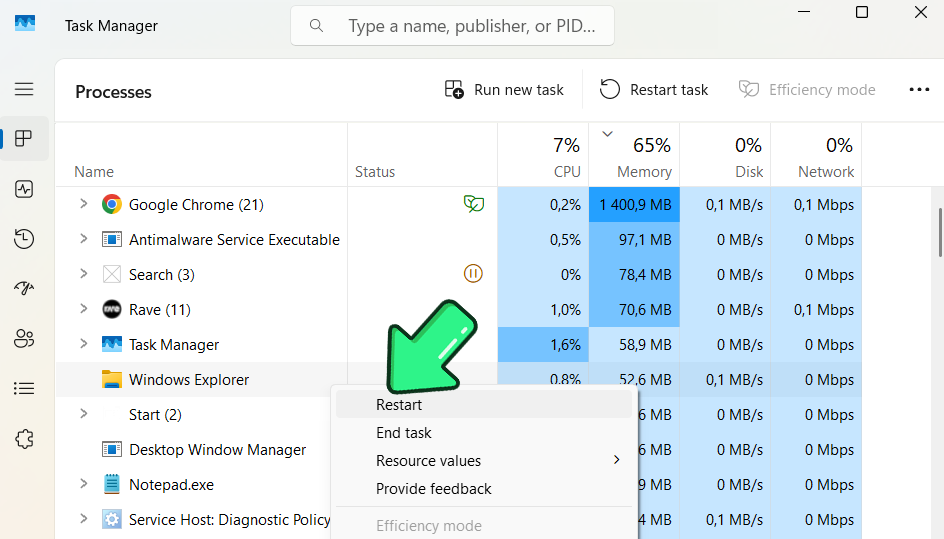
Restart Windows Explorer
Restarting Windows Explorer refreshes the taskbar and search bar without a full reboot.
- Press Ctrl+Shift+Esc to open the Task Manager.
- Under the Processes tab, find Windows Explorer.
- Right-click it and select Restart. Your taskbar will briefly disappear and return.
Restart the Search Service
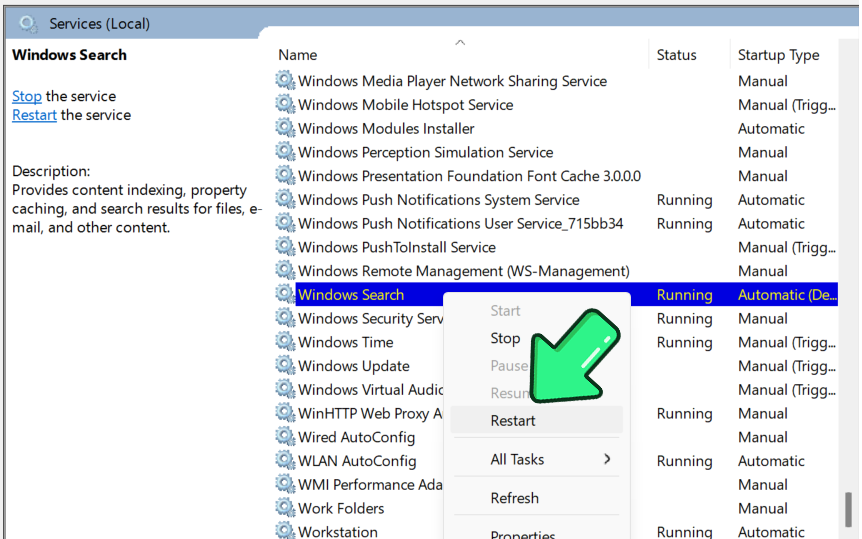
If the Windows Search service is stuck, the search bar won’t work.
- Press Win+R to open the Run box.
- Type services.msc and press Enter.
- In the Services window, scroll to Windows Search.
- If Status is Running, right-click and choose Restart; if not, choose Start.
- Close the window and test the search bar.
Restart the Search Process
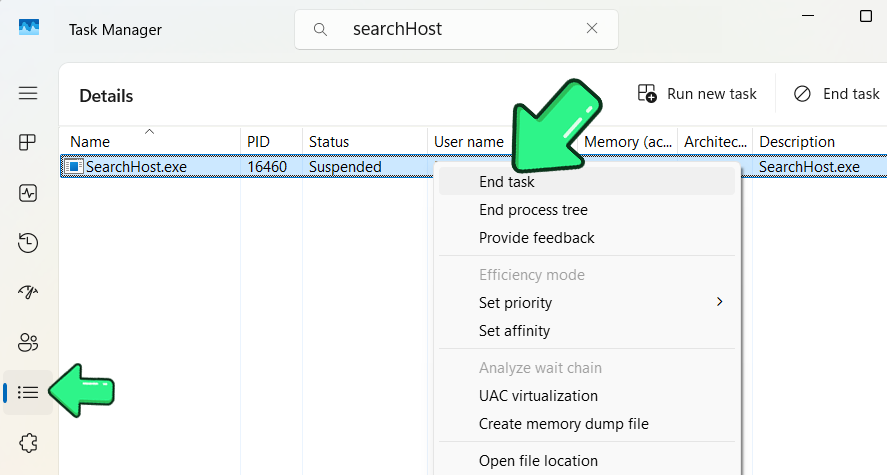
If SearchHost.exe or SearchUI.exe is hung, this restarts it.
- Open Task Manager (Ctrl+Shift+Esc).
- Go to the Details tab.
- Find SearchHost.exe (Windows 11) or SearchUI.exe (Windows 10).
- Right-click and choose End Task. Windows restarts it automatically.
- Try the search bar again.
2. Find Files While Windows Search Is Not Working
If your immediate goal is to find a document - not to repair the Start menu - SeekFast is an easy way to continue working even when Windows Search is broken. It searches file names and the text inside documents independently of Windows Search.
How SeekFast Helps
- Searches inside Word, PDF, Excel, PowerPoint, OpenOffice, eBook, text, code, and other supported files.
- Works even when the built-in Windows search is unavailable.
- Ranks the most relevant results first.
- Shows the matching sentences with your search words highlighted.
- Lets you search a selected folder without waiting for Windows Search to rebuild its index.
How to Find Files with SeekFast
- Download and install SeekFast.
- Open the program and select the folder you want to search.
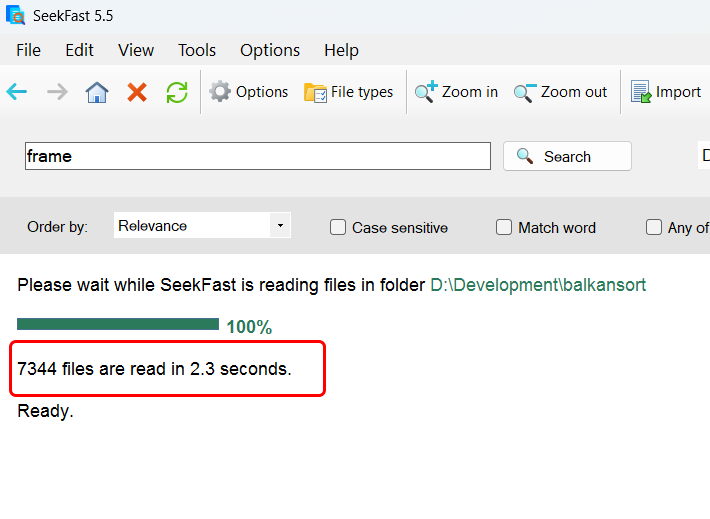
- Enter your keywords and press Enter.
-
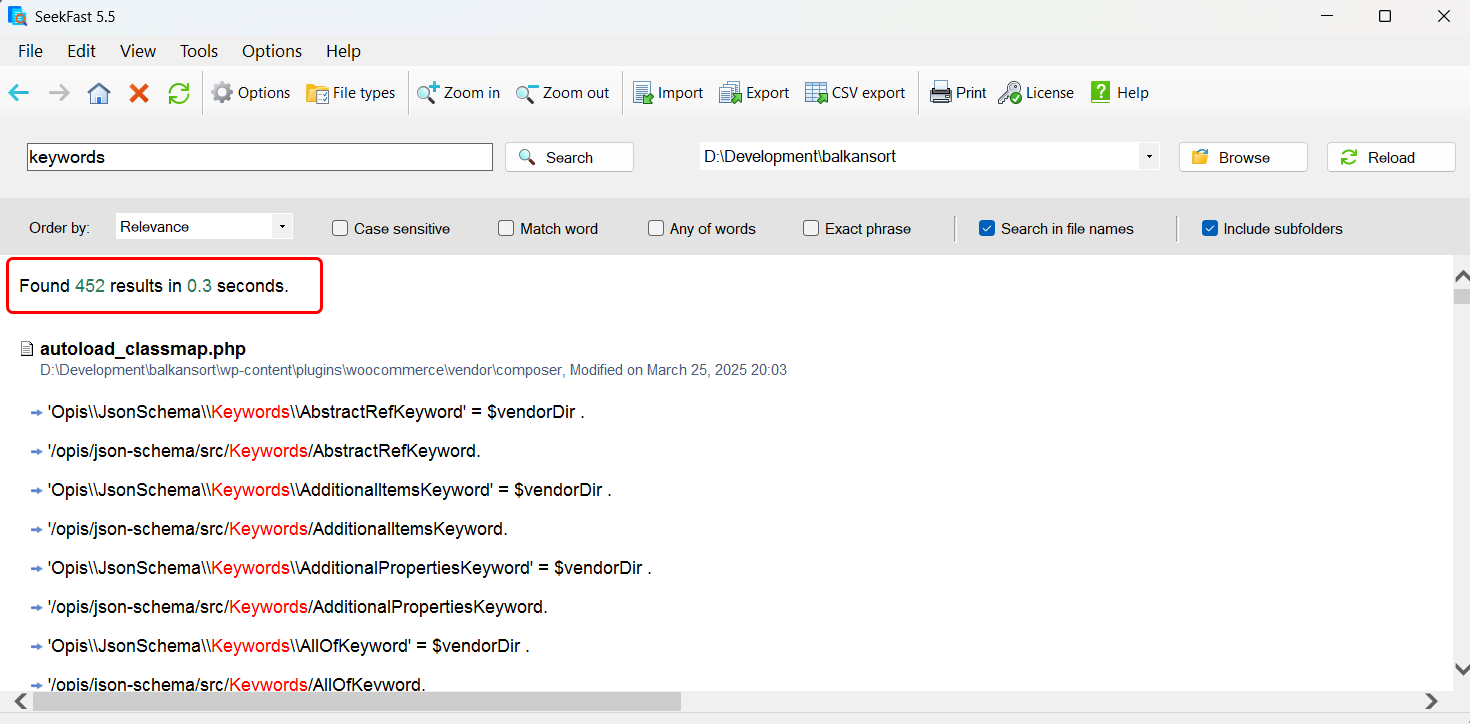
- Click a result to see more matching text, or click the file name to open the document.
Other Windows Search Alternatives
- Everything is extremely fast when you know all or part of a file name, but it is not designed primarily for searching text inside documents.
- PowerGREP is aimed at advanced users who need regular expressions, extraction, and bulk replacement across many files.
- Listary focuses on faster folder and application navigation.
For a wider overview of built-in and third-party options, see How to Search Files in Windows 10 and 11.
If you want to repair Windows Search, continue to the section matching your issue:
- Search Bar Won’t Open or Is Blank
- Can’t Type in the Search Bar
- Search Opens But Shows No Results
- SearchHost.exe High CPU Usage or Crashes
3. Search Bar Won’t Open or Is Blank
Symptom: When you click the search box, nothing happens, or you see a blank panel.
Run the Search Troubleshooter
The built-in troubleshooter identifies and resolves common issues automatically.
- Press the Windows key+I to open Settings.
- Go to System (or Update & Security in Windows 10).
- Select Troubleshoot.
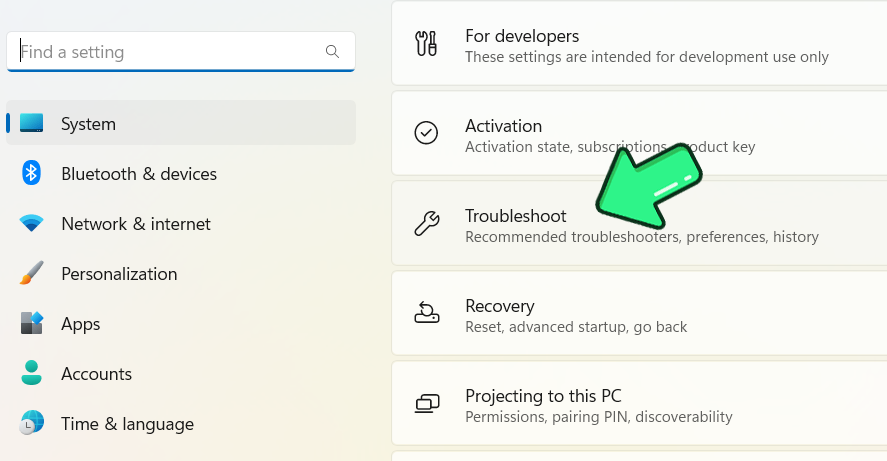
- Click Other troubleshooters (or Additional troubleshooters in Windows 10).
- Find Search and Indexing and click Run.
- If it’s missing, press Win+X, then A and run:
msdt.exe -ep WindowsHelp id SearchDiagnostic
Follow the prompts, check problems that match your issue, and let Windows fix what it finds.
Restart the Windows Font Cache Service
- Press Win+R, type "services.msc", and press Enter.
- Find Windows Font Cache Service.
- Right-click and choose Stop.
- Wait 10 seconds, then right-click and choose Start.
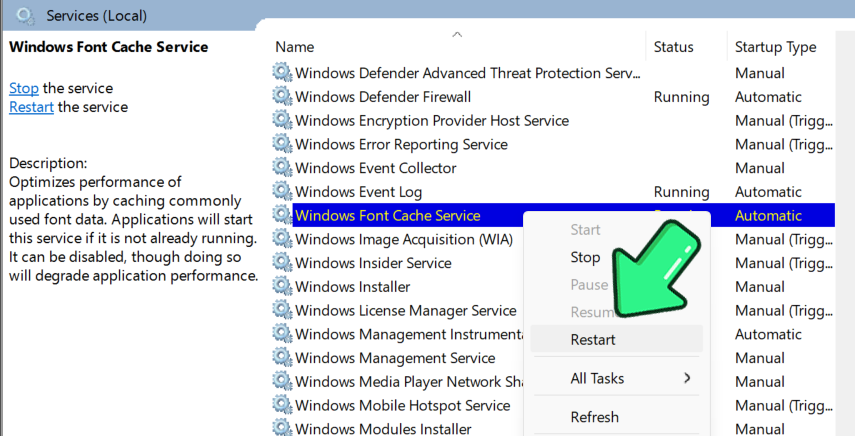
- Test the search bar.
Reset the Search Feature (Advanced)
Resets search to factory settings, fixing deep corruption.
Note: You may need to change the execution policy if prompted.
Use Microsoft’s Official Script
- Download the Reset Windows Search PowerShell script from Microsoft.
- Right-click the script and choose "Run with PowerShell as Administrator".
Warning: After resetting, Windows must rebuild the search index; some results may be missing until indexing completes.
4. Can’t Type in the Search Bar
Symptom: The search panel appears, but you can’t type. Keystrokes don’t register.
Win+R Trick
This resets keyboard input and often restores typing instantly.
- Press Win+R to open the Run dialog.
- Click Cancel or press Esc.
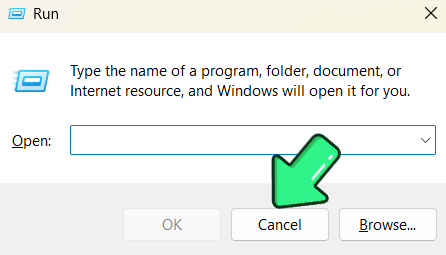
- Try typing in the search bar again.
Manually Start ctfmon.exe
ctfmon.exe manages text input for search.
- Press Win+R, type C:\Windows\System32\ctfmon.exe, and press OK.
- Try typing in the search bar.
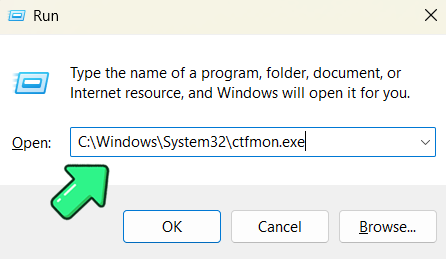
Make It Permanent: add ctfmon.exe to startup:
- Press Win+R, type shell:startup, and press Enter.
- Right-click → New → Shortcut, browse to C:\Windows\System32\ctfmon.exe, name it “ctfmon,” and finish.
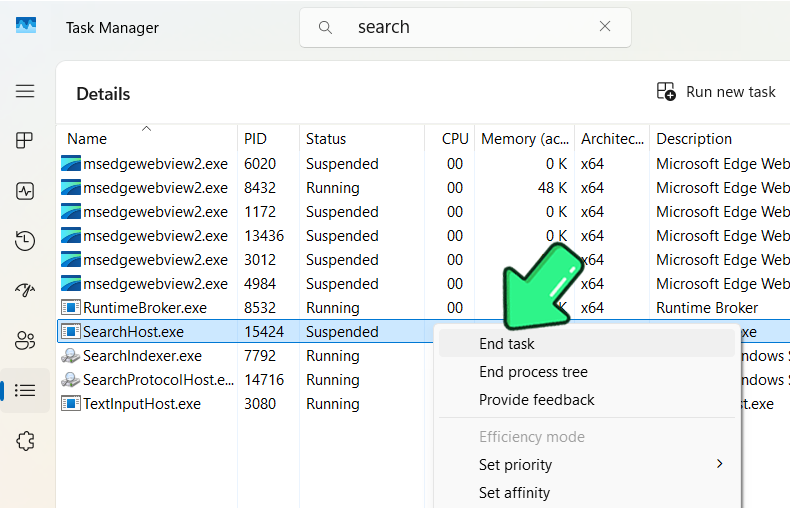
Restart the Search Process
- Open Task Manager (Ctrl+Shift+Esc).
- Go to the Details tab.
- End SearchHost.exe (Windows 11) or Cortana (older Windows 10).
Check Keyboard and Language Settings
Test typing in Notepad, press Win+Space to switch keyboard layouts or languages.
If typing still fails, go to the section about third-party tools.
5. Search Opens But Shows No Results
Symptom: Search opens, but nothing appears - no files, apps, or settings.
Verify Search Service and Indexing
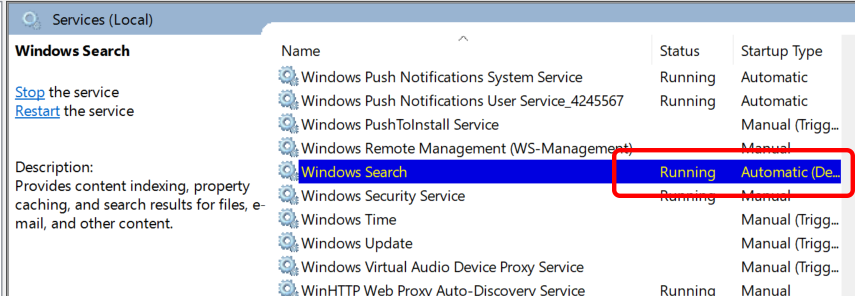
- Press Win+R, type services.msc, press Enter, and ensure Windows Search is running and set to Automatic.
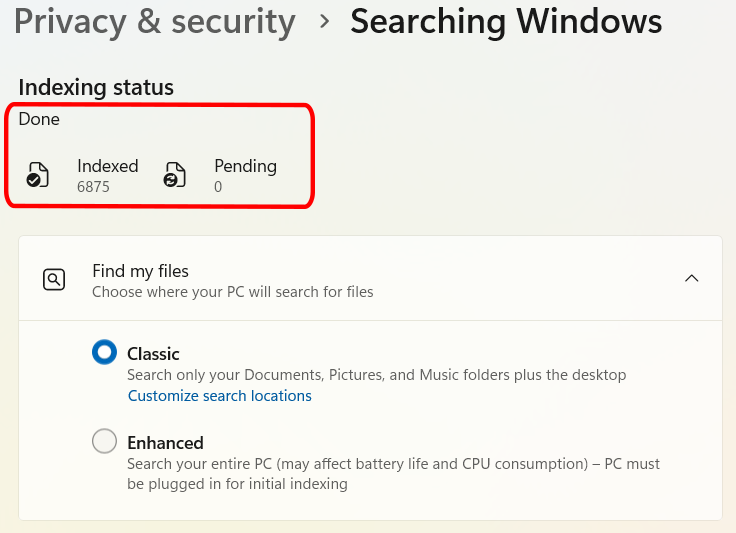
- Go to Settings → Privacy & Security → Searching Windows (or in Windows 10: Search → Searching Windows).
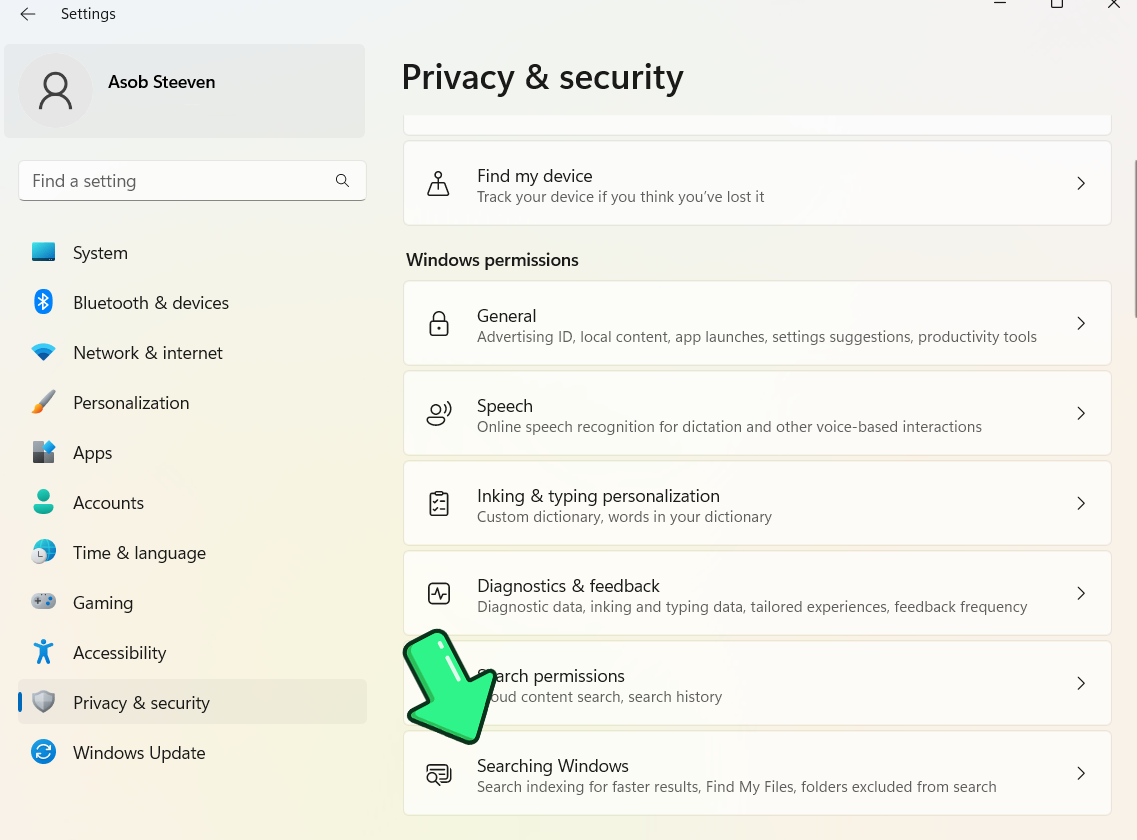
- Check the indexing status.
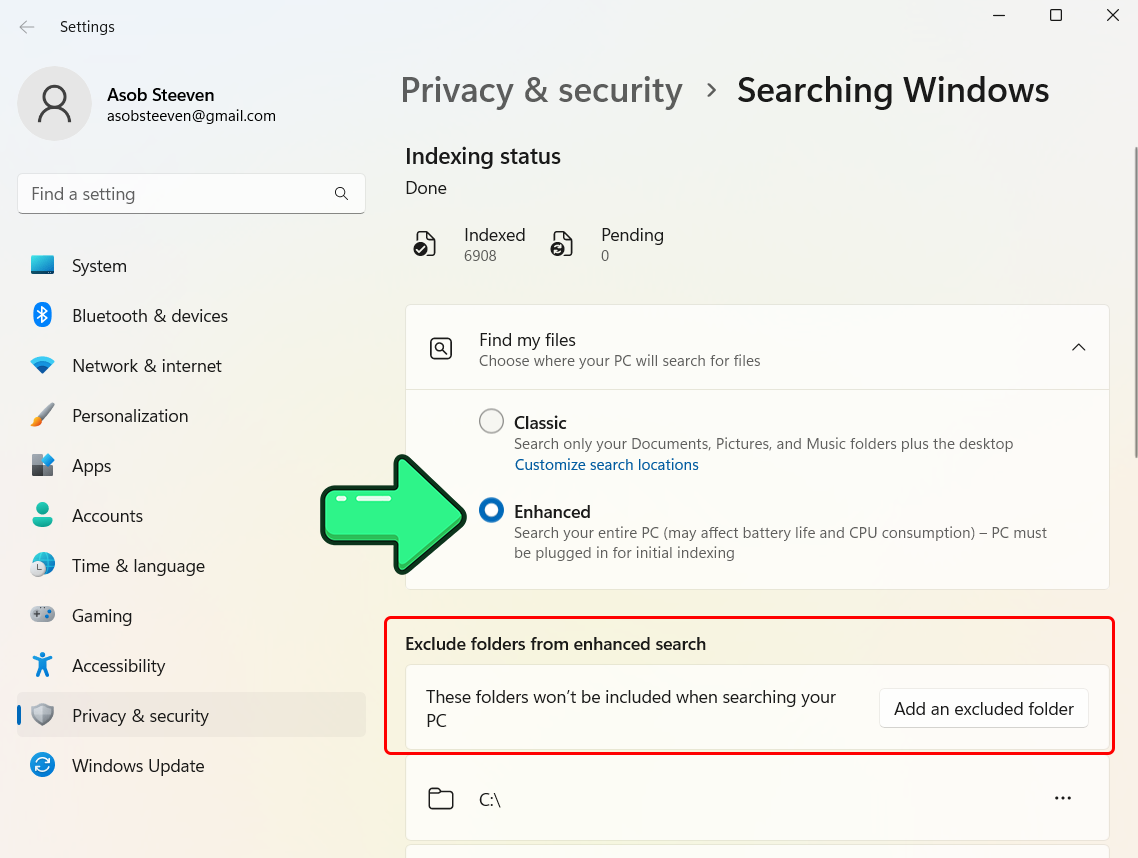
Expand Search Indexing to All Locations
- Select Enhanced (Find My Files) instead of Classic.
- Ensure important folders aren’t excluded.
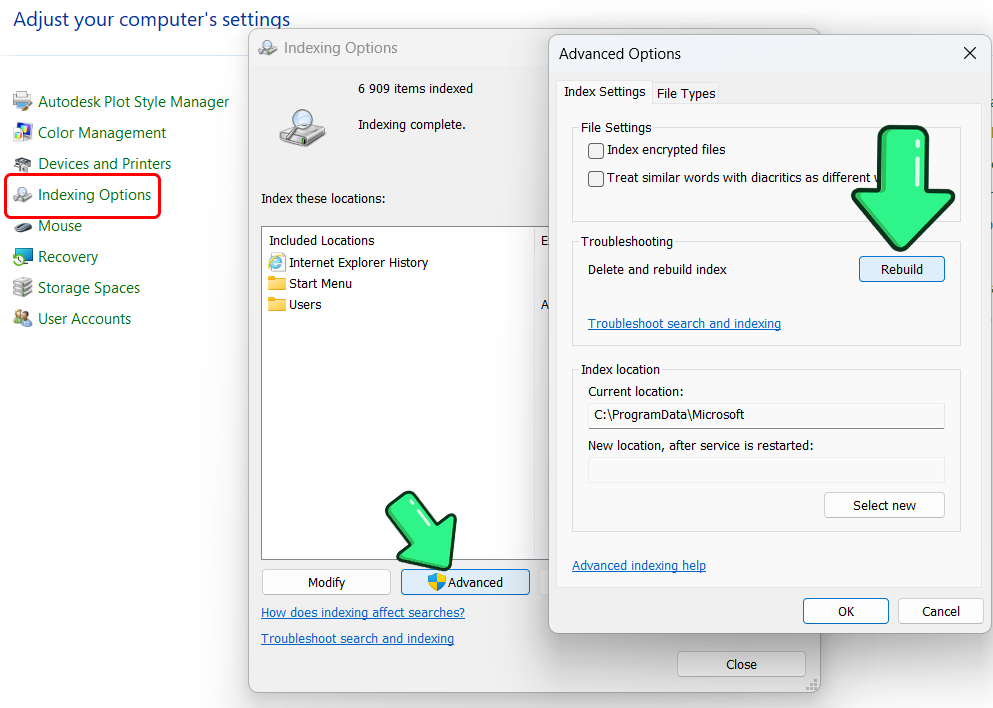
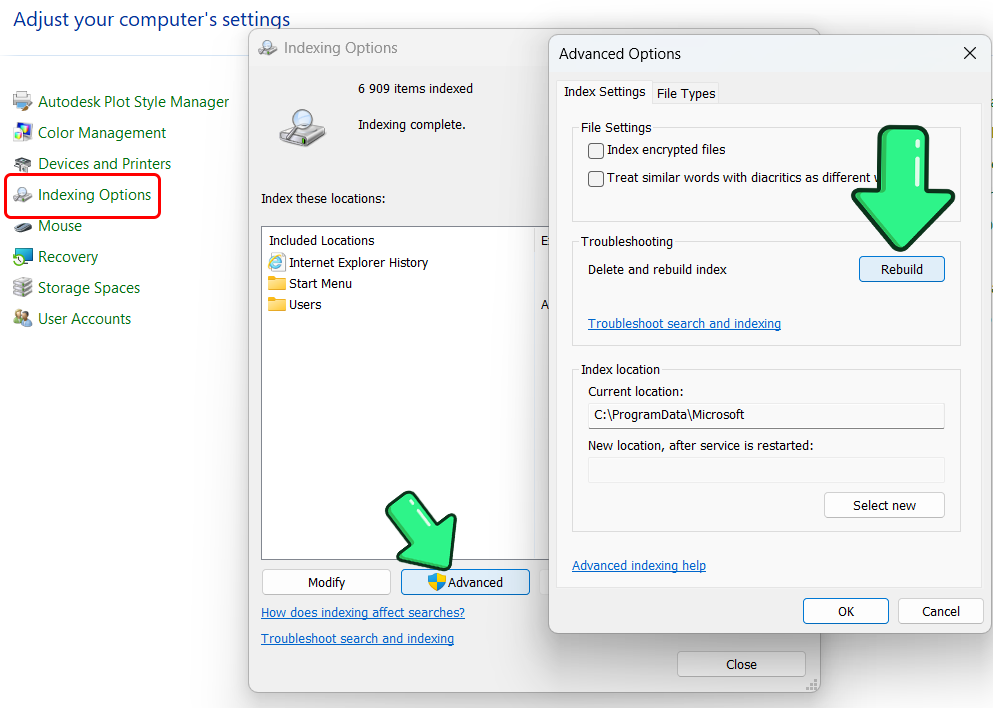
Rebuild the Search Index
- Open Control Panel (Win+R, type control).
- In Indexing Options → Advanced → File Types, ensure needed types (.docx, .xlsx, .pptx, .pdf etc.) are set to "Index Properties and File Contents".
- Go to Indexing Options → Advanced → Rebuild.
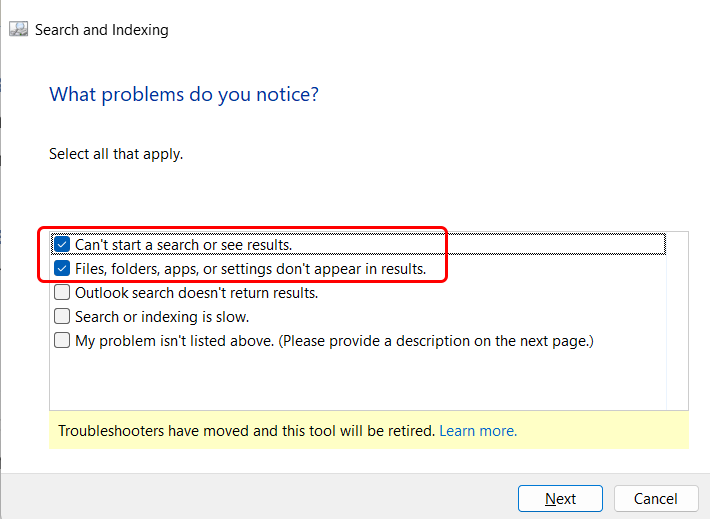
Run the Search & Indexing Troubleshooter
Press Win+X, then A and run:
msdt.exe -ep WindowsHelp id SearchDiagnosticFollow the prompts, check problems that match your issue, and let Windows fix what it finds.
If none of these options help and you need to find a file or text inside a document now, use SeekFast while Windows rebuilds or repairs its search index.
Download SeekFast for Windows See how SeekFast works
6. SearchHost.exe High CPU Usage or Crashes
Symptom: SearchHost.exe (or SearchIndexer.exe/SearchUI.exe) consumes high CPU or crashes.
Wait for Indexing to Complete
- Open Settings → Privacy & Security → Searching Windows and wait if indexing is in progress.
Pause or Reduce Indexing
- Use Pause indexing or remove large folders in Indexing Options → Modify.
Rebuild the Index
- Go to Control Panel → Indexing Options → Advanced → Rebuild.
Update Windows and Drivers
- Go to Settings → Windows Update, install all updates, and update drivers.
Scan for Malware
- Open Settings → Privacy & Security (Windows 11) → Windows Security → Virus & Threat Protection, and then choose Full scan.
Warning: A “SearchHost.exe” outside C:\Windows\SystemApps could be malware.
Disable Windows Search (Last Resort)
Warning: Disabling search slows down File Explorer and Start menu searches.
- Open services.msc, set Windows Search to Disabled, click Stop, then OK.
Tip: If you disable Windows Search, consider using a third-party tool instead.
Conclusion
If your goal is to restore searches for apps, settings, and files in the Start menu, use the Windows Search fixes above.
If you need to find a file or search inside Word, Excel, PDF, and other documents immediately, SeekFast gives you a separate way to search while Windows Search is unavailable.
Frequently Asked Questions
1. How do I fix the Windows search bar if it’s not working?
First, restart your computer, Windows Explorer, and the Windows Search service. If that fails, follow the steps in this guide or use SeekFast for an instant search.
2. What is SeekFast, and how does it help when Windows Search is broken?
SeekFast searches the content of your files instantly - even if Windows Search is down - so you can locate documents, code, or notes right away.
3. Why isn’t Windows Search finding my files or apps?
Indexing issues or a stuck service are common causes. Rebuild the index if you need Windows to find apps and settings. If you only need files or text inside documents, use SeekFast as a quick alternative.
4. How can I search inside Word, PDF, or text files if Windows Search is down?
Use SeekFast - it scans and finds words or phrases inside almost any file type. Also, check out our articles How to Search Text in Multiple Word Files and How to Search Text in Multiple PDF Files in Windows, where you will find a very detailed answer to this question.
5. What’s the fastest way to find files when Windows Search won’t open?
Download and use SeekFast. It delivers instant results without relying on Windows Search.
6. What’s the difference between Everything, SeekFast, and PowerGREP?
-
Everything indexes only file and folder names and delivers instant name searches - it’s extremely fast but not designed for content search.
-
SeekFast searches within file contents (Word, PDF, Excel, code, etc.), ranks results by relevance, and shows the matching sentences. It’s fast and intuitive.
-
PowerGREP is for advanced users needing regex-based multi-file search, extraction, and bulk replace. It offers full preview, persistent undo history, backups, and even automation via scripts or batch scheduling.
7. Will rebuilding the Windows Search index delete or move my files?
No - rebuilding the index only recreates the search database. Your files remain untouched on disk; Windows simply re-catalogs them to restore search functionality.

#Requires -RunAsAdministrator
Write-Host “`n=== Windows 11 Search Repair (Insider 26200+) ===” -ForegroundColor Cyan
# 1. Kill running search processes
Write-Host “`n[1] Stopping SearchHost / StartMenu / Explorer…” -ForegroundColor Yellow
taskkill /f /im SearchHost.exe 2>$null
taskkill /f /im StartMenuExperienceHost.exe 2>$null
taskkill /f /im Explorer.exe 2>$null
Start-Sleep 2
# 2. Delete corrupted local package state (CBS is the actual container for Win11 search)
Write-Host “[2] Removing Search/CBS local state folders…” -ForegroundColor Yellow
$folders = @(
“$env:LOCALAPPDATA\Packages\MicrosoftWindows.Client.CBS_cw5n1h2txyewy”,
“$env:LOCALAPPDATA\Packages\Microsoft.Windows.Search_cw5n1h2txyewy”,
“$env:LOCALAPPDATA\Packages\MicrosoftWindows.Client.WebExperience_cw5n1h2txyewy”
)
foreach ($f in $folders) {
if (Test-Path $f) {
Remove-Item -Path $f -Recurse -Force -ErrorAction SilentlyContinue
Write-Host ” Removed: $f”
} else {
Write-Host ” Not found (ok): $f” -ForegroundColor DarkGray
}
}
# 3. Nuke the old search registry to force regeneration on next start
Write-Host “[3] Deleting HKCU search registry key to regenerate…” -ForegroundColor Yellow
reg delete “HKCU\SOFTWARE\Microsoft\Windows\CurrentVersion\Search” /f 2>$null | Out-Null
Write-Host ” Done.”
# 4. Reset the actual Windows 11 search packages (CBS + WebExperience)
Write-Host “[4] Resetting Client CBS & WebExperience packages…” -ForegroundColor Yellow
Get-AppxPackage *MicrosoftWindows.Client.CBS* | Reset-AppxPackage -ErrorAction SilentlyContinue
Get-AppxPackage *MicrosoftWindows.Client.WebExperience* | Reset-AppxPackage -ErrorAction SilentlyContinue
# 5. Re-register the base manifest if present
$manifest = “C:\Windows\SystemApps\MicrosoftWindows.Client.CBS_cw5n1h2txyewy\Appxmanifest.xml”
if (Test-Path $manifest) {
Write-Host “[5] Re-registering Client.CBS manifest…” -ForegroundColor Yellow
Add-AppxPackage -Path $manifest -DisableDevelopmentMode -Register -ErrorAction SilentlyContinue
} else {
Write-Warning “CBS manifest not found at expected path; skipped re-register.”
}
# 6. Restart Search service
Write-Host “[6] Restarting Windows Search service…” -ForegroundColor Yellow
Restart-Service WSearch -Force -ErrorAction SilentlyContinue
# 7. Restart Explorer
Write-Host “[7] Restarting Explorer…” -ForegroundColor Yellow
Start-Process “Explorer.exe”
Write-Host “`nDone. WAIT 60-120 seconds for SearchHost to re-initialize.” -ForegroundColor Green
Write-Host “If search is still blank, try re-boot.”
I recently wrote a detailed guide covering 12 fixes if you need more troubleshooting steps.
might be helpful for your people.
https://fixpilot.tech/windows-search-not-working/